Going further
Helper and settings
The card panel works out your closest hands and how many tiles each still needs, and drops hands that can no longer be made. Settings let you enlarge tiles, change speed and toggle hints.
Closest hands
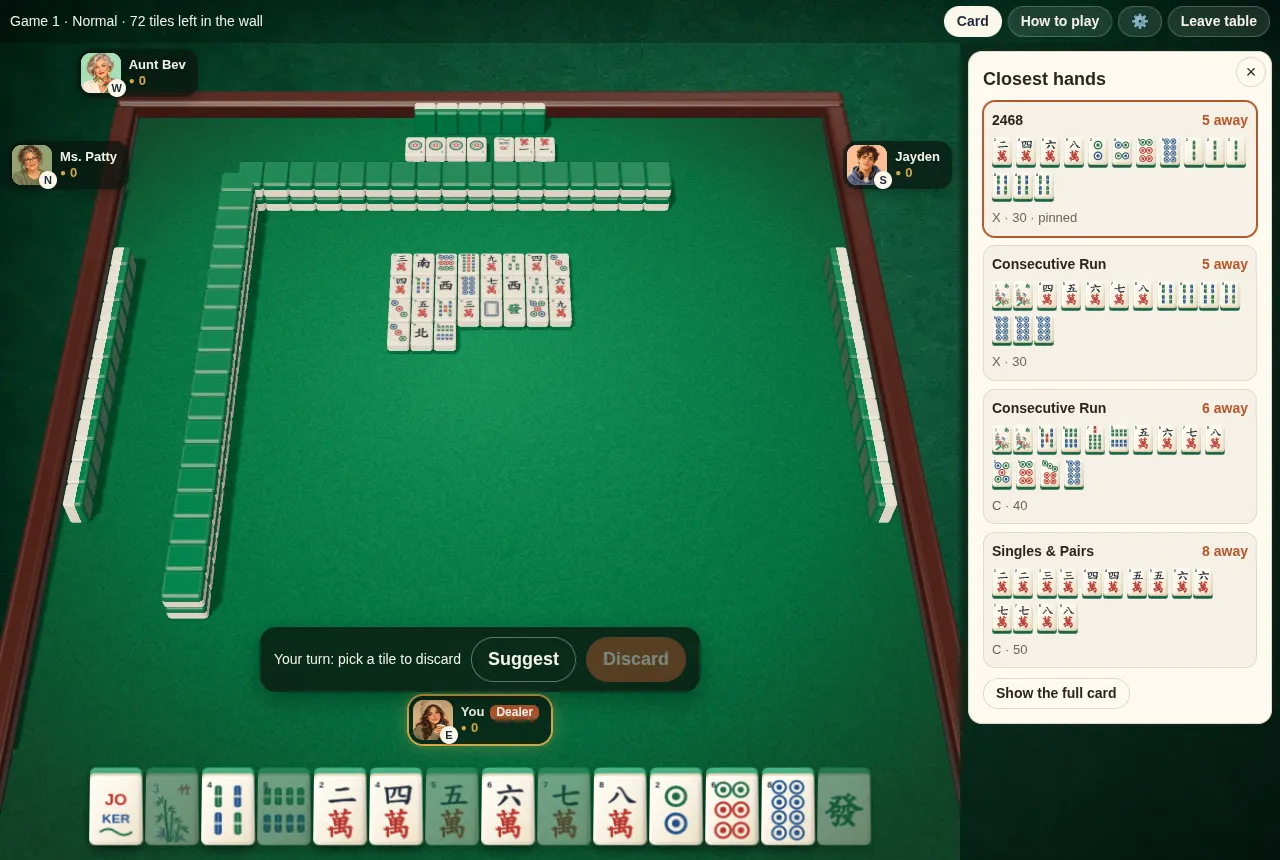
“Closest hands”, on the right of the table (press “Card” above the table to open or close it; on narrow screens it slides in from the right over the table), is recalculated every time you draw or pass, and lists the four hands you can complete fastest:
- Category and how far away: “3 away” means 3 more of the right tiles and you have Mah Jongg. A finished hand shows “Complete!”.
- The actual tiles: based on your current tiles, it picks the best suits and numbers and draws the full 14-tile hand to aim for.
- X / C and value: whether you may expose or must stay concealed, and what the hand is worth.
It also drops hands that can no longer be made: if the tiles you need have been discarded or exposed, and what’s left out there (plus jokers) isn’t enough, that hand simply won’t appear. Plenty of mahjong apps don’t bother working this out.
Pinning a hand
Tap any hand in the panel to pin it:
- Tiles in your hand that this hand can’t use are dimmed, so you can see at a glance what to discard.
- The pinned hand stays in the panel even if it’s no longer one of the closest, and if it becomes impossible it’s marked “Dead” so you know to change course.
- Tap it again to unpin.
The full card
Press “Show the full card” to open the whole card, with all 10 categories and 50 hands. Hands you’ve won are ticked.
Suggest
There’s a “Suggest” button during both the Charleston and regular play:
- Charleston: picks the 3 tiles you need least.
- Play: picks the discard that hurts your closest hands the least.
A suggestion only selects tiles for you. You still press “Pass 3” or “Discard” yourself, and you can change the selection first.
Settings
The gear icon in the top-right corner opens Settings:
| Setting | What it does |
|---|---|
| Computer speed | Slow, Normal or Fast. Choose Slow if you want to see exactly what the bots throw |
| Confirm before discarding | When on, you tap twice (or tap once and press “Discard”) to discard, so you don’t throw a tile by accident on a phone |
| Show closest hands next to the table | When on, wide screens open the card panel at the start of a game. When off, you open it yourself with “Card”. Handy when you want to challenge yourself |
| Highlight a suggested tile to pass or discard | During the Charleston and play, a gold dot appears under the suggested tile |
| Sound | Sounds for discards, claims and winning |
| Tile size | Normal, Large or Extra large. Go bigger if your eyes are tired or you’re on a tablet |
| Theme | System, Light or Dark |
Settings are saved on this device and will still be there next time.
Up nextStrategy for beginners →